Frequently Asked Questions
Comprehensive guides, troubleshooting tips, and configuration manuals for CRAX Commander.
Troubleshooting
Update Error: "Failed to change owner & group"
If you encounter the "Failed to change owner & group on Crax.app" error during an update, verify that the application belongs to the current user and group.
Step 1: Check Current User/Group
Open Terminal.app and run:
id -gn (displays current user primary group)
Step 2: Fix Permissions
If values don't match, run:
Alternative Solution:
Copy Crax.app from /Applications to your Desktop, remove the
original from Applications, run the update on the Desktop copy, and move it back.
File System Access / Sandboxing Issues
Why do I see "File System Access" dialogs?
The App Store version is sandboxed. To grant full disk access:
- Select your USER HOME folder when prompted and click Allow FileSystem Access.
- Open Preferences inside CRAX.
- Click Reset File System Access.
- Select the ROOT (/) folder of your drive (Macintosh HD) and click Allow again.
Problem after reboot?
If you lose access after a reboot (seeing "Sandbox Error"), use the following button in Preferences again to re-authorize the drive:
App won't start / Dark screen / No panels
If the application starts but nothing happens (or the display is dark with no panels), configuration files might be corrupted.
Solution: Fully uninstall the application (including Library files) and reinstall a fresh version.
Please refer to the Uninstall Procedure section below.
Sidebar is missing or showing partially
Sidebar not showing:
Perform a full uninstall/reinstall to reset layout configuration.
Sidebar shows partially:
Maximize the CRAX main window (green button), then quit the application (CMD+Q). Restart
CRAX. The layout should reset.
Cannot see DRIVES on Sidebar
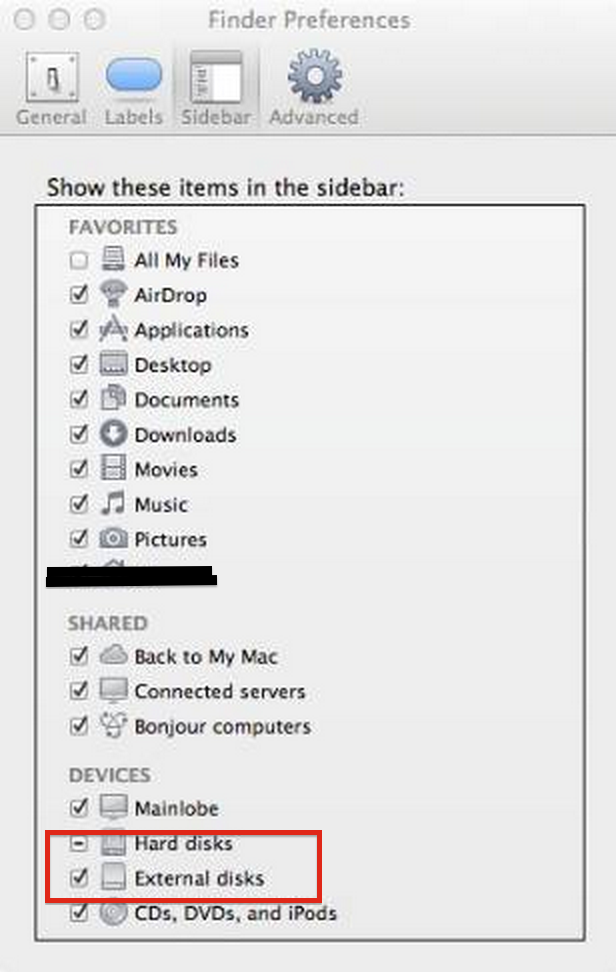
In order to see drives on the sidebar in CRAX, you must enable Devices in Finder's preferences.
- Click on the Finder icon in the dock.
- Go to the top menu bar, click Finder -> Preferences.
- Select the Sidebar tab.
- Check the boxes under "Locations" (Hard disks, External disks, CDs, DVDs, and iPods).
Configuration & Tools
How to configure Custom Tools
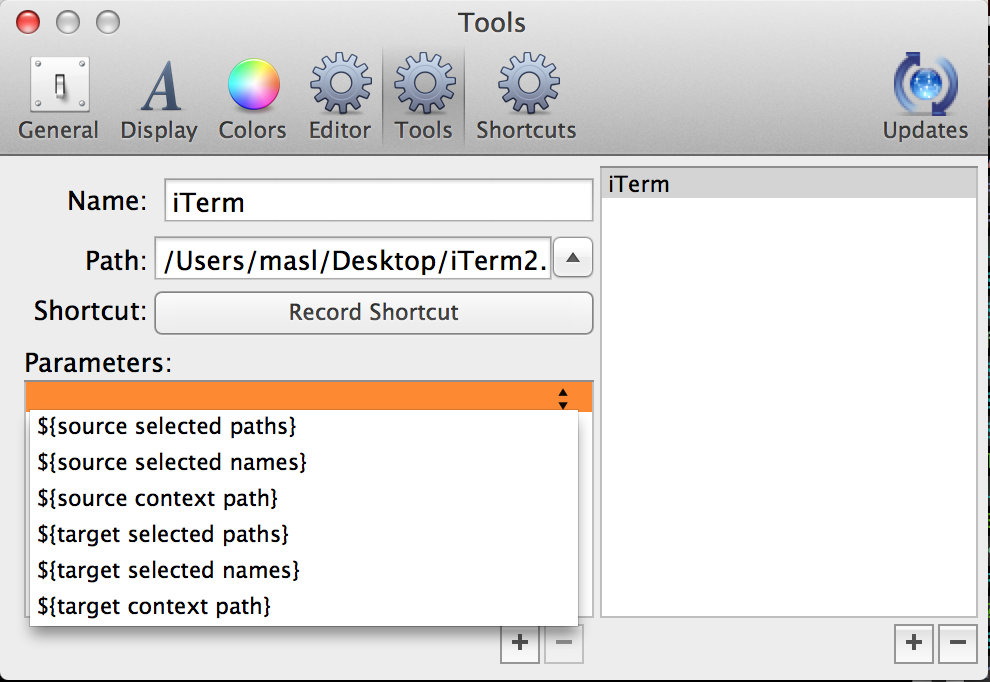
You can define external applications as tools within CRAX. Here is how to do it:
- Go to Preferences > Tools.
- Click the Add Tool Definition button (Plus icon).
- Tool Name: Enter a name (e.g.,
iTerm). This will appear in the "Tools" menu. - Tool Path: Enter the absolute path to the executable.
- Example for iTerm:
/Applications/iTerm.app/Contents/MacOS/iTerm - Example for App Bundle: Use
/usr/bin/openas path and add the app via parameters.
- Example for iTerm:
- Shortcut: Click "Record Shortcut" and press your desired key combination.
- Parameters: Add arguments like
%p(current path) or%f(selected file).
How to configure OpenDiff (File Comparison)
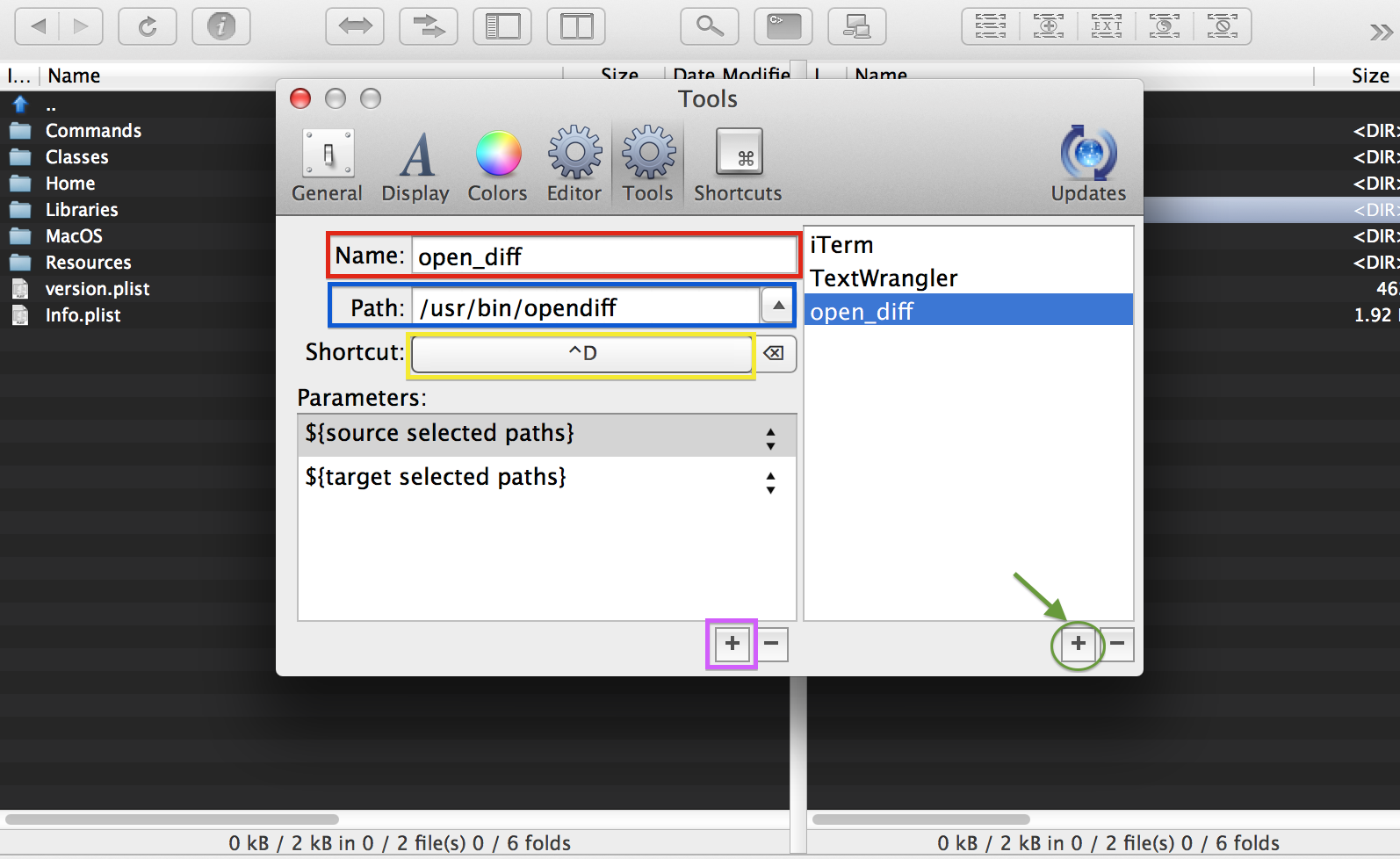
To use Apple's FileMerge (opendiff) for comparing files:
- Go to Preferences > Tools.
- Add a new tool named
open_diff. - Set Path to:
/usr/bin/opendiff - Set Shortcut (e.g., CTRL+D).
- Add two parameters:
- Parameter 1:
%f(File from active panel) - Parameter 2:
%F(File from other panel)
- Parameter 1:
Usage: Select a file in the left panel and another in the right panel, then press your shortcut.
Export / Import Settings
To backup or transfer your configuration, you can use the external CRAX Tool Application.
Download CRAX TOOL (CrxTool.zip)
- Download and unzip the tool.
- Close CRAX Commander completely.
- Run CRAX TOOL.
- Click Export CRAX Settings to save a backup, or Import CRAX Settings to restore.
Keyboard Shortcuts
| TAB / CMD + I | Move cursor to another panel (swap source/target) |
| ENTER | Show content of highlighted folder or open file in default application |
| SPACE | Select file/folder (calculates folder size) |
| BACKSPACE | Go one directory up |
| CTRL + P | Show/Change permissions for file/folder |
| CTRL + . | Toggle hidden files |
| SHIFT + CMD + C | Close current tab |
| SHIFT + CMD + O | Close other tabs (except active one) |
| SHIFT + CMD + A | Close all tabs in current panel |
| SHIFT + CMD + S | Recalculate size for selected folders |
| SHIFT + CMD + D | Duplicate highlighted item in current folder |
| SHIFT + CMD + N | Unselect all files/folders in current panel |
| SHIFT + CMD + H | Toggle hidden files and folders |
| SHIFT + CMD + V | Unselect group of files matching pattern |
| SHIFT + CMD + E | Select files with same extension as highlighted |
| SHIFT + CMD + G | Go to folder (change context in active panel) |
| CMD + F | Search (Show search dialog in editor) |
| CMD + U | Swap active panels |
| CMD + E | Equalize two panels |
| CMD + Y | Open QuickLook for selected paths |
| CMD + R | Refresh content in current panel |
| CMD + A | Select all files and folders in current panel |
| CMD + G | Select group of files matching pattern |
| CMD + G | Find next occurence of phrase (in editor) |
| CMD + K | Connect to Server |
| CMD + T | Add new tab |
| CMD + Q | Quit CRAX (or close editor window if active) |
| CMD + H | Hide CRAX window |
| CMD + UP ARROW | Go to enclosing (parent) folder |
| FN + LEFT ARROW | Go to first element in file panel |
| FN + RIGHT ARROW | Go to last element in file panel |
| FN + UP ARROW | Page Up |
| FN + DOWN ARROW | Page Down |
| Double Click (Path bar) | Reveal clicked path in Finder |
| Single Click (Path bar) | Go to clicked path |
| Double Click (Info Panel) | Open QuickLook window |
| SHIFT + Click | Range selection |
| CMD + Click | Select/Unselect item |
| UP / DOWN ARROW | Navigate list |
| ALT + CMD + ARROWS | Change active tab (Left/Right) |
| ALT + CMD + I | Invert selection |
| ALT + CMD + H | Hide other windows |
| ALT + F7 | Open Search Window |
| ALT + F | Search (in editor) |
| F3 | View file (Quick Viewer) |
| F4 | Edit file |
| F5 | Copy to target panel |
| F6 | Move to target panel |
| F7 | Create new folder |
| F8 | Delete permanently |
| SHIFT + F4 | Create new file and edit |
| SHIFT + F5 | Create symlink in target panel |
| SHIFT + F6 | Rename file/folder |
| SHIFT + F8 | Move to Trash |
| CMD + C | Copy path of highlighted item (from status bar) |
How to fully uninstall CRAX
To completely remove CRAX and reset all settings:
- Remove Crax.app from
/Applications. - Delete these configuration files (Replace [UserName] with your user name):
/Users/[UserName]/Library/Application Support/CRAX/
/Users/[UserName]/Library/Containers/pl.ewas.Crax/
Tip: Use Finder's "Go" menu and hold Option (Alt) to see the Library folder.